Can I Combine Different Video Types Into A Single Project?
Key Takeaways
You can successfully combine different video types in a single project by understanding the interplay between containers, codecs, resolution, and frame rates. This understanding ensures compatibility and minimizes technical issues during editing.
Choosing editing software that accepts a broad range of video formats and has strong project setup features will help ensure seamless integration and preserve quality.
By keeping the colors matched through color correction, framing unified, and transitions appropriate, you can produce a professional-seeming final product that feels cohesive and looks great to viewers, no matter how they watch it.
Fixing audio discrepancies by leveling, syncing, and standardizing stops playback issues and makes for a better experience for your viewers.
To solve technical hurdles such as performance lag, file incompatibility, or render errors, be proactive in your troubleshooting, use transcoding tools, and leverage community support resources.
By embracing a workflow from preparation and creative experimentation to final polish, you can simplify your editing process and impressively enhance your finished video projects.
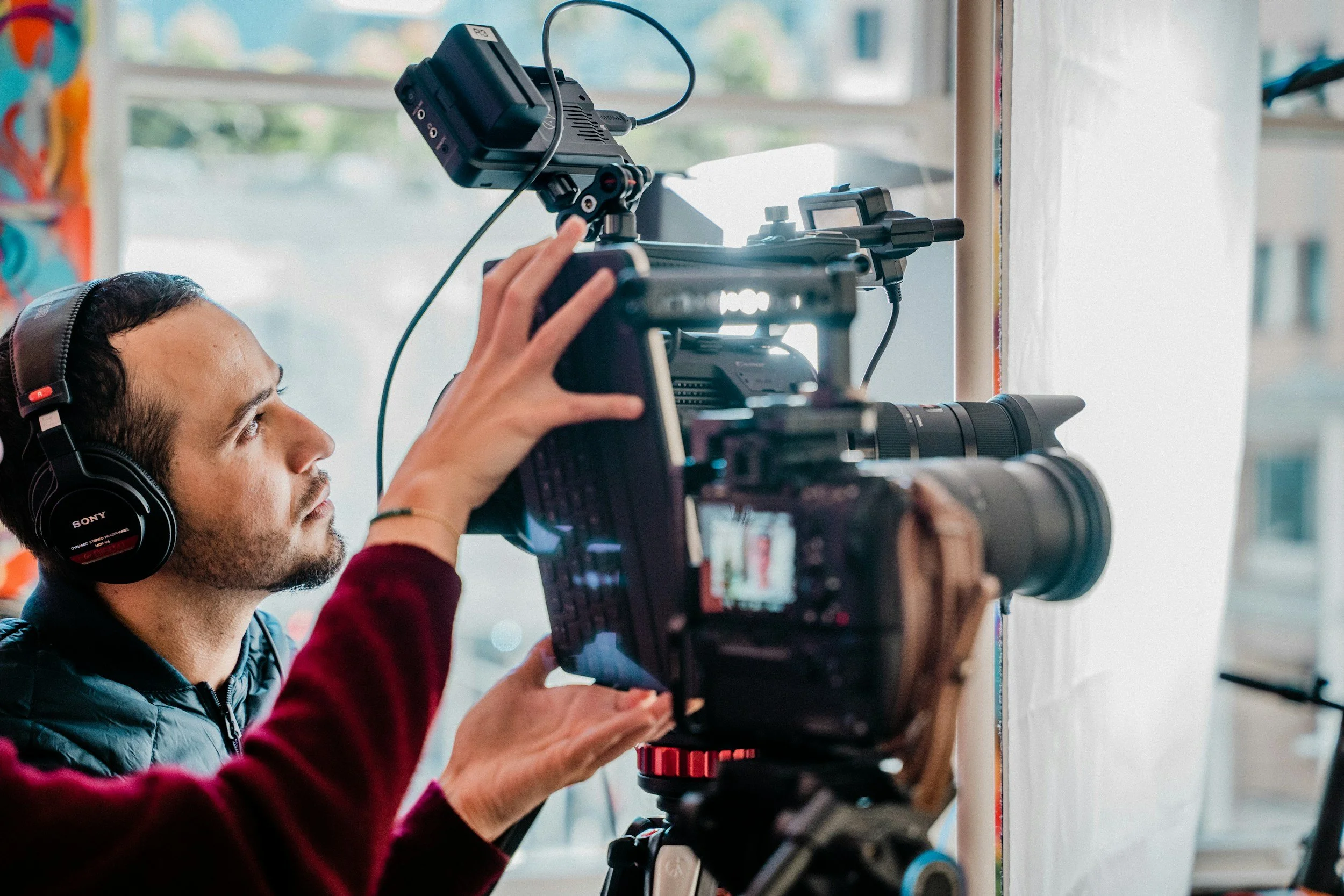
Yes, you can mix and match video types together within a single project with most modern video editing tools. It’s common to mix formats such as MP4, MOV, and AVI in beginner and advanced editing processes. Most editing apps allow you to toss clips with different frame rates, sizes, or codecs onto the same timeline, so you can blend phone footage, screen recordings, and camera files. Certain software might have you sync settings or transcode files for seamless viewing, but the basic procedure remains straightforward. Mixing different types of footage allows you to narrate your project the way that best suits your vision, so your project can contain whatever elements you desire. Here’s how to handle these steps and steer clear of headaches when editing.
Understand Different Video Types
Each of these video types has its own unique characteristics that define both your editing workflow and the end result. From how a video file is stored to the way it plays and looks, these technicalities count if you want your project to play nicely on multiple devices and for various audiences, especially when considering the use of tools like the Clipchamp video editor for effective video content creation. The table below shows the characteristics, strengths, and drawbacks of common video types.
MP4 is one of the most widely supported video formats and uses compression to reduce file size. Its main advantage is that it produces smaller files that are easy to share, upload, and play on almost any device or platform. However, the compression process can slightly reduce video quality, especially if overdone.
AVI is an older video format that uses less compression compared to modern formats. This allows it to maintain high video quality and makes it easier to edit during post-production. The downside is its large file size, which can be difficult to store and share, and it may not be compatible with all modern devices or platforms.
MOV is an Apple-developed video format known for delivering high-quality visuals. It is commonly used in professional video editing because it preserves detail and color accuracy. While it offers excellent fidelity, MOV files tend to be large and may have limited support on non-Apple devices or systems without proper codecs.
360-degree videos are immersive formats that capture a full surrounding view, allowing viewers to interact by looking around within the video. This makes them ideal for virtual tours, experiences, and interactive storytelling. However, they require special players or platforms to view properly, and the editing process is more complex than standard videos.
Stop-motion videos are created frame by frame to produce animated movement, resulting in a unique and visually creative style. They are excellent for storytelling and artistic projects that aim to stand out. The main disadvantage is that they are time-consuming to produce and require detailed planning and precise execution.
Containers
MP4 is universal, has good compression, supports many codecs, and is efficient for streaming.
MOV: High quality, popular for professional editing, works best on Apple devices.
AVI: Old but solid. It has less compression, big files, and is flexible for editing.
MKV is open-source, supports many streams and subtitles, and is less common but powerful.
FLV: Designed for the web, small files, less used today.
Containers are wrappers that keep video, audio, subtitles, and metadata in a single file. The right box will allow you to edit seamlessly, play video clips on multiple devices, and transfer projects with less hassle. Choose the wrong one, and you’ll get playback glitches or absent functionality. Metadata inside the container can assist you in keeping video assets organized, making it easier to locate the appropriate clip and manage language tracks.
Codecs
Codecs compress video files, allowing for less space usage while determining the quality of the video content. Popular codecs like H.264 offer a great compromise between file size and quality, making them suitable for most players. For high-end delivery and editing, ProRes is fantastic, but it results in larger files. Mixing codecs can lead to playback lags or unexpected color shifts, so it's wise to use the same codec throughout your video project. If necessary, transcode your video clips before editing to avoid glitches later on.
Resolution
Resolution refers to the number of pixels that appear in each frame, with 1080p (Full HD) and 4K being sharper options. If your viewers use big screens, a higher resolution will assist in delivering quality video content. However, on phones, too high a resolution can chew up space and stall playback. To maintain consistency, keeping one resolution among all video clips is essential to prevent jarring jumps in quality. Utilities such as HandBrake or VLC allow you to view and edit resolution details, ensuring they align for your new project.
Frame Rate
Frame rate is the number of frames per second you view. More frames lead to smoother motion.
24 fps is the movie standard, 30 fps suits TV, and 60 fps is optimal for sports or gaming. Choosing the frame rate influences the tone. 24 fps has a cinematic feel, while 60 fps appears crisp and clear but less dramatic.
If you mix frame rates, you could experience stutter or weird motion. Here are some tips for matching frame rates:
Check all clips before editing; use media info tools.
Downsample higher frame rates to the lowest.
Use editing software to blend frames if needed.
Test playback on your target device to catch issues.
How To Combine Different Video Types
Mixing video types in your project is a great way to share a story from multiple perspectives or combine footage from different devices. Regardless of format, such as MP4, MOV, or AVI, you can combine these video clips by following the correct procedure and using suitable software like the Clipchamp video editor. Every step from selecting software to exporting your final product counts toward producing a polished and compelling end video.
1. Choose Software
Picking the software is step one. If you want an easy workflow, things like Clipchamp and iMovie are nice for their clean interfaces and simplicity. They’re great for general-purpose editing and handle a number of popular video formats.
For those requiring deeper control or intending to implement effects, Adobe Premiere shines. It provides you professional editing tools, allows additional file types, and includes functions like Beat Sync, which aligns your video cuts to the rhythm of your chosen music. Check if the software is compatible with your computer and supports the files from your devices. You want buttery smooth playback and editing, not lag or crashes.
2. Set Project
To begin, launch your editor and create a new project. Set the aspect ratio and resolution to match your main output. Most online platforms prefer 16:9 and HD (1920 x 1080 pixels). Consistency here keeps your video looking crisp and professional.
Adjust the timeline for all your scheduled clips. Some allow you to customize the interface with panels for effects, timeline, and media library. This configuration saves time later when you’re dealing with dozens of files from different sources, such as edited images or assets from your personal library.
3. Import Media
To start your new iMovie project, hit the import media button or media tab to bring in all the video clips and images you’d like to utilize. Similar to most editors, you can easily drag and drop files right into the workspace for quick organization. By sorting files by type, date, or scene, you can stay organized throughout your video content creation process.
Ensure that each file opens properly in your editor. Some older formats might require conversion first, so it’s crucial to check. Label each clip descriptively, such as ‘drone_shot’ or ‘interview1,’ allowing you to locate it effortlessly without sifting through multiple clips.
For asset-heavy projects, using the Clipchamp video editor makes it convenient to create folders or bins within the software. This organization not only quickens the edit but also helps you stay error-free.
4. Edit Timeline
Drag each of the videos and images onto the timeline, next to each other. This step combines all your inputs into one extended video. For clarity of the story, position the clips in the sequence you want them to play.
Trim the beginning and end with the timeline handles. Cut them out to keep things tight. Employ a video trimmer if your software has one—it simplifies slicing and splicing tremendously. You can add transitions between clips by literally dragging a transition effect between two assets. Most editors pop this transition in for you, smoothing the cut from one scene to the next. If you want to go further, add titles, end credits, or effects.
Mix in music or sound. Some editors even allow you to sync your cuts to the beat, which makes it more energetic and fluid.
5. Export Project
When you’re happy with the edit, choose export settings appropriate to your destination platform. For YouTube, select MP4 with H.264 and a bit rate that is not too high or too low in terms of quality and file size. Watch the video for mistakes or pieces before exporting.
Save the final file wherever you want. Now it is prepped to share, upload, or archive.
Create Visual Consistency
Establishing visual consistency is a necessity in any video project, particularly when you employ multiple video formats. This makes each clip 'click' so that it all feels cohesive. Each shot, hue, and motion needs to feel like it is part of the same narrative. You want your viewers' attention fixed, not wandering off in the direction of weird tonal or stylistic transitions. Consistent color, layout, and design decisions help establish your brand identity and make an impression. Many editors rely on a style guide or at least a template to maintain consistency, but it is time-consuming and requires an eagle eye for detail. Certain video editors have fancy settings for this, which simplifies the work a little, but it still requires forethought.
Color Correction
Create visual consistency by ensuring that your video clips match in tone and appearance. Once you manage the basics, correct brightness, contrast, and saturation to balance the overall look. You’ll want to ensure each shot has consistent lighting and tone, as even slightly too bright or too dark can detract from your message. Using color adjustment tools can help achieve this balance across multiple videos.
Tones of color should be consistent for all your clips. If you intercut footage from different cameras or lighting setups, color wheels or RGB curves can get them closer. Enter color grading. A cool blue overlay might establish a somber mood, while warmer hues come across as welcoming. Consider the narrative and the impression you’d like to leave behind.
Presets are handy for rapid modifications in your video editor. Most editing software, like the Clipchamp video editor or Adobe Premiere, has built-in color grading presets that can save you time and help maintain consistency. Always check every clip, as presets serve as a starting point rather than a magic bullet.
Framing
Maintaining a consistent framing across all your shots makes the video professional. Whether it’s tight close-ups or wide shots, maintain consistency. It is an easy way to prevent jarring scene-to-scene cuts.
Apply the Ken Burns effect to still images or static shots. Here, you add slow zoom or pan, so it’s still moving, but consistent. Just create some sort of visual consistency by aligning your subjects using grid overlays or guidelines in editing software. This ensures faces and objects fall in the same place from scene to scene, creating a professional appearance.
Changing up angles can work, but keep it understated. Too many changes in perspective can get sloppy. Instead, shoot from consistent heights or distances and pan the camera only when necessary to provide emphasis.
Transitions
Simple cut (straight cut)
Crossfade (dissolve)
Dip to black or white
Slide or push
Wipe
Select transitions that complement your video’s rhythm and style. Simple cuts and fades are safe bets. They keep things neat and professional. Don’t use too many flashy effects, like spins or 3D flips, which distract attention away from your content.
Experiment with transitions between clips. Create Visual Consistency. Sometimes a slide works better than a fade, especially on zippy projects. Always rewind and watch it all the way through. If a transition feels weird, replace it with something more basic.
Solve Audio Mismatches
When you mix and match video clips in a project, audio mismatches tend to be the largest obstacle to a seamless outcome. These mismatches, where the sound and picture don’t line up or the volume fluctuates from clip to clip, can significantly disrupt your project’s rhythm. This issue becomes even more critical if you’re working with clips that have different frame rates or formats, or if you need to blend together voice, sound effects, and background music. Here are the key ways to address these problems, with actionable advice and a checklist to guide you.
Normalize Levels
Begin mixing all audio. You’ll want every sound, from dialogue to background noise, to play at a consistent volume. This means ensuring that no clip is significantly louder or quieter than the others. Audio meters in your editing software are key here. Employ them as you edit through each clip to identify where spikes or drops occur. These visual cues assist you in identifying mismatches upfront.
Use compression, which does the opposite by pulling soft sounds up and reigning in loud peaks, so the entire audio track sounds cohesive. For example, if you have a soft interview clip adjacent to a loud street scene, compression smooths the mismatch. Before you export your final video, check all audio levels. Test on multiple players if you can. What sounds okay on your headphones might be too shrill over speakers. This prevents nasty surprises when your project is heard somewhere else.
Sync Audio
Right sync is more than just timing; it involves matching every word and sound to the picture so nothing feels amiss. To achieve this, match the audio to the corresponding video clips, utilizing the color adjustment tools in your editing software. Examine the waveforms displayed by your ClipChamp video editor, which help you line up moments such as a clap or the beginning of a phrase. Certain applications can auto-sync these waveform mismatches, saving time, particularly on longer projects like a new iMovie project.
After syncing, playback the video and look for any slips. Ensure that speech matches mouth movement and sound effects hit at the right moment. If you notice a mismatch, shift the audio delay or offset a few frames. This manual tweak can be slow but is often very precise, especially since mismatches can arise from differing frame rates of multiple clips.
Unify Formats
Making your life much easier, converting all audio to a single type before editing is essential for a smooth workflow. Opt for something that maintains the audio but doesn’t drag your software down, like WAV or AAC files, which work well for most projects. If you grab files from a variety of places, you’re frequently going to encounter different bit rates or codecs, leading to playback errors or glitches, especially when working with video clips for your new project.
Addressing audio discrepancies is crucial. A few programs, including the Clipchamp video editor, support only a handful of formats, and mismatched ones won’t play properly or at all. Before you begin joining clips, cross-check all file attributes and transcode if necessary to avoid technical issues and editing time.
Overcome Technical Hurdles
Mixing various video types in one project, especially when using tools like the Clipchamp video editor, usually translates into battling an array of technical obstacles that can bog down your process, make you miserable, and affect your project's excellence. Regardless of your expertise, working with a variety of file formats, bloated video sizes, and software settings requires a mix of technical know-how, problem-solving, and a teachable spirit. A good understanding of what your video content requires and its limitations enables you to anticipate potential pitfalls and prepare appropriate solutions.
File incompatibility is a common challenge in video editing when different cameras or sources produce files that your editing software cannot easily handle. The most effective solution is to transcode all media into a uniform, editing-friendly format before starting the project, ensuring smoother playback and fewer errors.
Performance lag can slow down the editing process and disrupt workflow, especially when working with high-resolution footage. This issue can often be resolved by optimizing your software settings, closing unnecessary background applications, or upgrading hardware components such as RAM, storage, or graphics cards.
Render errors usually occur due to compatibility issues, corrupted files, or incorrect export settings. To fix this, check that all media and codecs are supported, restart the editing software, and review official documentation or community forums for software-specific troubleshooting steps.
Large file sizes can make editing, storing, and transferring video files difficult. Using proxy files for editing or compressing footage before importing it into your project helps reduce system strain while maintaining the ability to export high-quality final videos.
Mixed frame rates can cause choppy playback or synchronization issues in a project. This problem is best addressed by standardizing frame rates during transcoding or setting a consistent frame rate at the start of the project to ensure smooth playback and accurate timing.
Performance Lag
Performance lag is the bane of every shutterbug, particularly when working with high-resolution video or multiple file types in the same timeline. Tweak your editing software. Reduce playback resolution and disable real-time effects during editing. This minor adjustment can do wonders toward easier playback.
Shut down unnecessary programs and background processes to liberate RAM and CPU capacity. If you see your machine still having issues, you may need to spend money on more memory or a faster graphics card. If you are dealing with 4K or larger files, you might want to create proxies, which are low-resolution copies made specifically for editing, and replace them with full-quality source files during export.
A combination of these steps usually cures lag. Occasionally, performance problems are related to the project’s complexity or the age of your system. Break your project into smaller chunks if you can, or upgrade your editing set-up.
Transcoding
Transcoding is the workflow term for taking video files and making them easier and more consistent to edit. Most editing software, such as DaVinci Resolve or Adobe Premiere Pro, provides its own transcoding capabilities. By utilizing the Clipchamp video editor, you can convert all your clips to an easily edited format like ProRes or DNxHD, which enhances the editing process for your video content.
Choose transcoding presets that balance quality with file size. For instance, if your final output is for web streaming, you don’t necessarily need to maintain such a high bitrate. Vigilantly track the conversion to avoid errors or corrupted files, because a failed transcode can stall your new project down the road. If you encounter issues or seek recommendations on how to do things optimally, user forums and online documentation are your best bet to secure support.
Transcoding not only makes editing easier, but it also addresses issues with file compatibility and random render errors. This fundamental phase is essential for any project that merges video assets from multiple sources, ensuring a smoother workflow overall.
Render Errors
Render errors can be random and often occur during the editing of video clips. They’re almost never insurmountable, so the initial step is to identify the error message. Most editing software, including the Clipchamp video editor, will display a code or description. Typical reasons for these errors include missing files, unsupported codecs, or settings mismatches that affect your video content.
To overcome technical hurdles, verify that all your files are compatible and your project settings align with your target output before every render. If an error pops up, restarting the program or your device can clear transient glitches easily. If the issue continues, seek out the error code in online forums or the software’s assistance, as many users exchange solutions to particular issues.
Sometimes, simply walking away from the problem can help you notice a solution you overlooked. Developer manuals might provide additional guidance, especially when troubleshooting issues with multiple videos or specific features like the gap removal feature in your iMovie project.
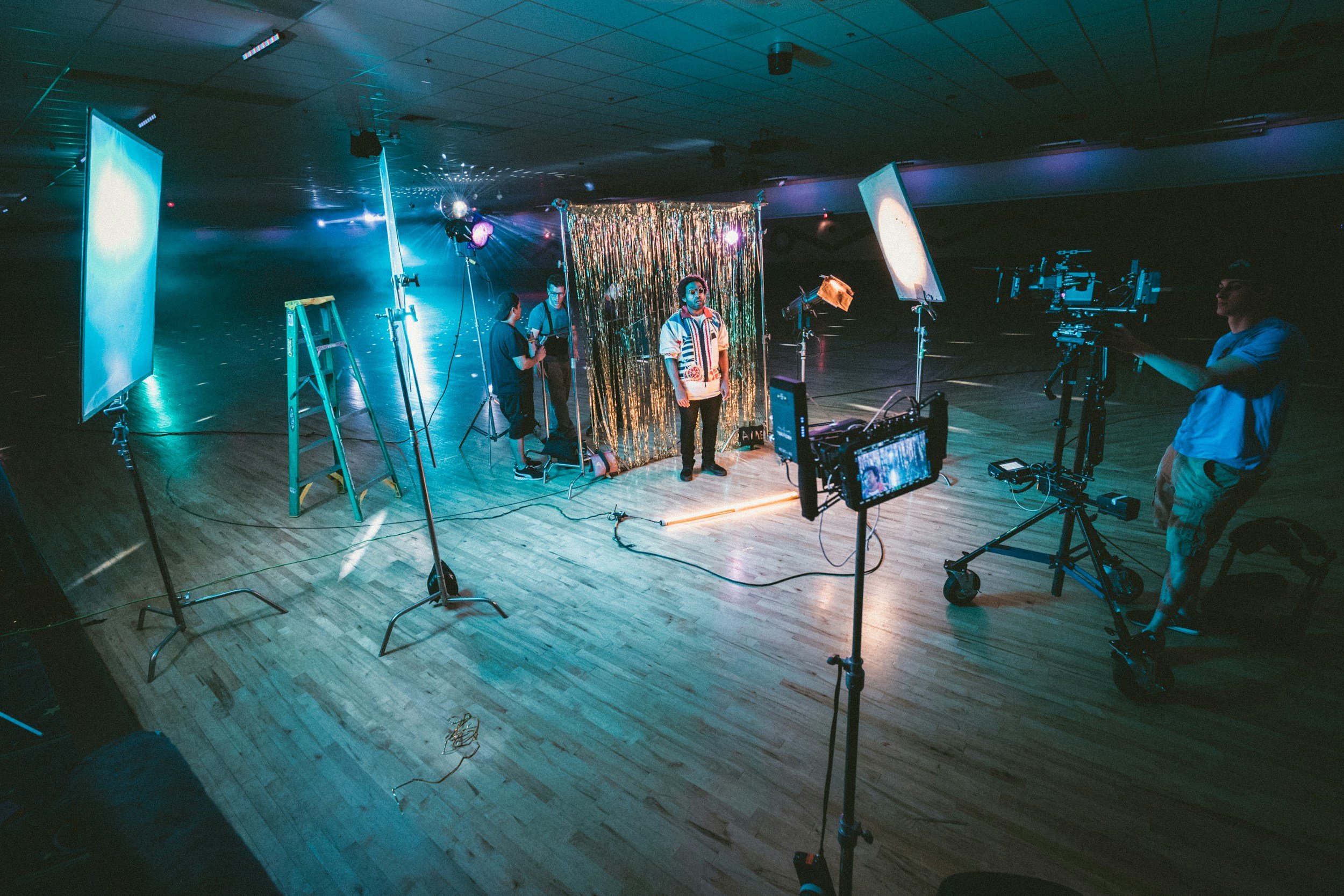
My Personal Workflow
Merging multiple video clips into a singular project requires a good plan and specific actions. Each step in my workflow compounds the previous, allowing you to transform chaos into polished video content. A schedule with hard tasks and clear steps, rather than too many things at once, keeps your new iMovie project cruising without stress.
The Prep Phase
Begin by corraling all your video clips, images, sound files, and graphics into one location. Organize with folders and obvious file names to keep things easy to find later. This saves time and keeps you from losing video assets. Many editors use a task manager for this, such as Trello or Notion, to outline what is required and mark each step complete as you go.
Before you begin cutting clips, sketch out a storyboard or quick outline. Plotting the flow of your new iMovie project scene by scene or section by section provides you with a clear roadmap, helping to divide the labor effectively. This is crucial if you’re dealing with many different types of video, like combining screen captures with interviews or cartoons. Without a map, you’ll miss details or lose your audience.
Establish what you want to show or tell. This assists you in selecting the clips and keeps you focused. Some folks like to order tasks by urgency, others by logic. Either is fine, so long as you keep your attention on the single thing. Take breaks, or you will burn out. A fresh mind catches mistakes more easily.
Familiarize yourself with your editing software, such as the Clipchamp video editor, before you jump in. Discover the shortcuts and test drive features early. The more intimately you know your tools, the quicker you can work and with fewer errors down the line.
The Creative Phase
This is where you make your narrative come alive. Experiment with new cuts or transitions, or ways to combine different types of video. Add in photos, soundtracks, and even voice-overs for added depth to your project. Interspersing these media can help emphasize important details or establish the tone of each scene.
Be open to change as you edit. Smart thoughts are apt to arise halfway through. Don’t hesitate to rearrange or experiment. Listen to yourself frequently. A quick playback can reveal where the pacing is wrong or where you lose the thread.
If you’re bogged down, divide the project into smaller pieces. Complete at least one section before switching or set mini-goals for each editing chunk. This prevents the process from catching you off guard and allows you to identify issues sooner.
The Final Polish
Review the entire project for flow and cohesion. View it from beginning to end, ensuring narrative cohesiveness and a consistent tone. Be on the lookout for jumps in sound level or weird lighting. These little things can distract viewers.
Now fine-tune sound, tweak hue, and add effects when applicable. Ensure titles, captions, and credits appear polished and complement your project’s style. These final flourishes provide your work with a professional flair.
Export your project to the right format for your platform. Some sites require MP4; others want other specs. I always view the exported file before distributing it to catch any last-minute mistakes. Routine reviews of your workflow can help you discover how to accelerate your process next time.
Conclusion
So you can mash up clips from multiple video types and create powerful projects. Going in with defined steps makes you get each piece in line. Design your workflow to stay sane. Preview your lighting and color to make sure each cut melds well. Keep your audio track synchronized for a crisp conclusion. Split the large work into small parts to repair the trouble quickly. Experiment on short clips before you get to a full video. Be open to new gear and software; it will save you time. You decide how deep you want to go with effects or flair. If you want your project to be popular, test theories, solicit feedback, and display your work. Show off what you do and inspire others with your work.
Frequently Asked Questions
1. Can You Mix Different Video Formats In One Project?
YES, you can combine different types of video clips in the same project. Virtually all modern editing software, like the Clipchamp video editor, supports various video assets, allowing seamless integration.
2. Will Combining Different Video Types Affect Video Quality?
To ensure consistency in your project, it's essential to edit all video clips to maintain the same resolution, frame rate, and color settings.
3. How Do You Match Audio Levels From Different Video Sources?
Utilize your editing software’s audio features, including sound effects and background adjustments, to balance volume, eliminate noise, and make transitions seamless for your video clips.
4. What’s The Best Way To Create Visual Consistency?
Utilizing the same video filters, color adjustment tools, and transitions across multiple videos ensures your project remains cohesive, even with mixed footage.
5. Are There Technical Challenges When Combining Video Types?
Yes, you may encounter problems such as incompatible frame rates or codecs. To avoid issues, utilize solid editing software like the Clipchamp video editor to transcode all video clips to a common format before beginning your project.
6. Do You Need Advanced Skills To Mix Different Video Types?
No advanced skill is needed; most easy-to-use video editors, like Clipchamp, provide tutorials and templates for mixing various video clips.
7. What Software Can Help You Combine Different Video Types?
Well-known video editors such as Adobe Premiere Pro, DaVinci Resolve, and the Clipchamp video editor allow you to combine different video clips and assets. Select the one that is appropriate for your project.
Showcase Your Brand With Peakbound Studio’s Business Video Expertise
Not sure what type of video will make the biggest impact for your business? Choosing the right format matters. At Peakbound Studio, we help brands identify and produce the video types that best fit their goals—whether you’re building trust, explaining services, or driving conversions.
From brand videos that define your identity to explainer videos that clarify complex ideas, we craft visual stories that connect with your audience and strengthen your message. Need to boost engagement? We create social media clips designed for maximum shareability. Want to earn credibility? Our testimonial videos spotlight real client experiences. Looking to educate or onboard? We’ll script and produce training and tutorial videos that make learning clear and engaging.
Every video we produce blends cinematic quality with strategic intent. We handle everything from planning and scripting to filming, editing, and optimization for each platform. The result is content that looks polished, performs well, and aligns perfectly with your brand’s voice.
When your business videos reflect purpose and quality, your audience feels it. Let Peakbound Studio help you choose and produce the right video types to elevate your brand story. Contact us today to start planning your next project.